Find out where Maps stops working
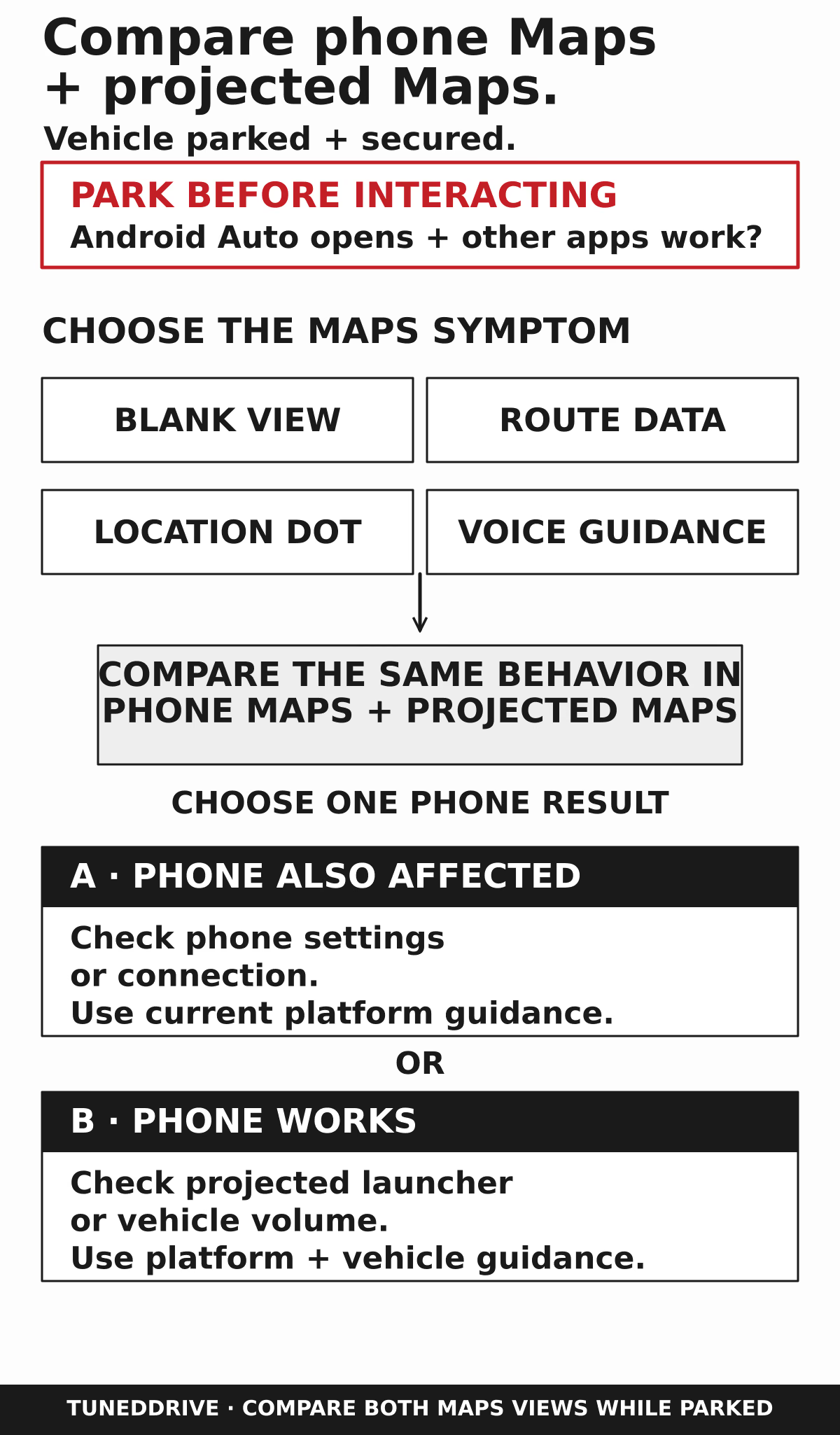
- Park, disconnect the phone, and load a new destination in Maps.
- Reconnect and try the same route on the car display. See whether other Android Auto apps work.
- A failure on both screens points to the phone, its location, or mobile data. A car-only failure points to the app’s projection or the connection.
- If navigation fails while you’re driving, pull over before touching the phone or display.
Android Auto runs on your phone and sends its interface to the car display. We’d compare the same new route on both screens before clearing data or resetting a pairing, because the result points to the fix worth trying.
| What you see | What it points to | What to try first |
|---|---|---|
| Maps has no icon | Its launcher entry may be hidden, or the app may be inactive. | Restore Maps in Customize launcher and open it on the phone. |
| The map is blank, frozen, or closes | Maps may be stuck; repeated loss of other apps points to the connection. | Restart the connection, then force stop Maps if it alone fails. |
| A new place or route will not load | Phone failure points to mobile data; car-only failure points to projection. | Search for the same new place on the disconnected phone. |
| The position is wrong or stuck | Phone failure points to location settings or GPS reception. | Compare the blue dot outdoors with the car parked. |
| Directions appear without speech | Guidance may be muted or the car’s navigation volume may be low. | Test Maps speech on the phone, then in the car. |
- Disconnect the phone. Open Maps, search for a new destination, and start a short route. Note whether the map draws, the blue dot is near your parked position, and guidance speaks.
- Reconnect and try that destination on the car display. Open another Android Auto app as well. If the same new route loads and the map responds on both screens, the fault has cleared.
- If the display still misbehaves, disconnect and reconnect once, then restart the phone. Restart the car display with its restart control and test again. Find that control in the vehicle or receiver owner manual. If several apps or the whole screen still drop, follow the connection checks below; if only Maps fails, follow its matching symptom.
Maps is missing from the launcher
If Android Auto opens but has no Maps icon, restore the launcher entry before working on cables or the car display. On the phone, search Settings for Android Auto. A common path is Settings > Connected devices > Connection preferences > Android Auto > Customize launcher. Show Maps if it is hidden, exit those settings, and restart Android Auto. The icon should appear and open.
Open Maps directly on the phone if it has been unused. That can re-enable an app that stopped appearing in Android Auto. If the icon disappears again, open Settings > Apps > Maps > Battery and remove a restriction that prevents Maps from running in the background; then reconnect and look for the icon.
Samsung Galaxy example: open Settings > Battery and device care > Battery > Background usage limits. If Maps appears in Sleeping apps or Deep sleeping apps, remove it. Samsung’s sleeping-app controls (opens in a new tab) show those lists. Reopen Maps on the phone, reconnect, and confirm its icon stays in the launcher and the map opens. If Maps opens but will not draw, move to the frozen-map steps.
The map is blank, frozen, or crashing
After the parked reconnect and restarts above, work on Maps itself if other Android Auto apps stay open. Run the same short route after each change: the fix has worked when the map draws, responds to a tap, and continues updating.
- Disconnect the phone and open Settings > Apps > Maps > Force stop. Reopen Maps and start the route. If it responds on the phone, reconnect and try the car display.
- If the fault returns, open Google Play > profile picture > Manage apps & device > Updates available. Update Maps and Android Auto when offered, then repeat the route.
- If Maps is still blank or frozen, open Settings > Apps > Maps > Storage or Storage & cache > Clear cache. Reopen Maps and test on the phone, then on the car display. Clear cache removes temporary files. Clear storage or Clear data resets the app’s data and settings and can remove locally saved Maps data.
- If phone Maps now works but projection remains blank, open Settings > Apps > Android Auto > Storage > Clear cache. Reconnect and run the route again. If other apps also freeze or the whole screen disconnects, test the wired or wireless connection below.
For wired Android Auto, plug a known-good USB data cable under 3 feet (1 meter) long directly into the car’s Android Auto data or media port, without a hub or extension. A cable can charge the phone yet fail to carry projection reliably. If the car identifies another Android Auto data port, try it too. After each change, the whole interface should stay connected while the map draws and updates. If a second phone fails the same way in this car, stop repeating phone resets and use the car-specific comparison below.
Places, routes, or traffic will not load
A map already visible on the phone may be stored there. To test live data, park, turn on mobile data, and search for a new destination in phone Maps. If the new search fails, look at the phone’s mobile signal and Data Saver setting, then allow Maps mobile data if it is restricted. If it succeeds on the phone, reconnect and repeat the search on the car display.
If a route loads but traffic coloring is missing, open Maps settings on the Android Auto display and turn on Traffic. When traffic is available, its coloring should return. If the new destination still will not load on either screen after mobile data is restored, repeat the Maps update and cache steps.
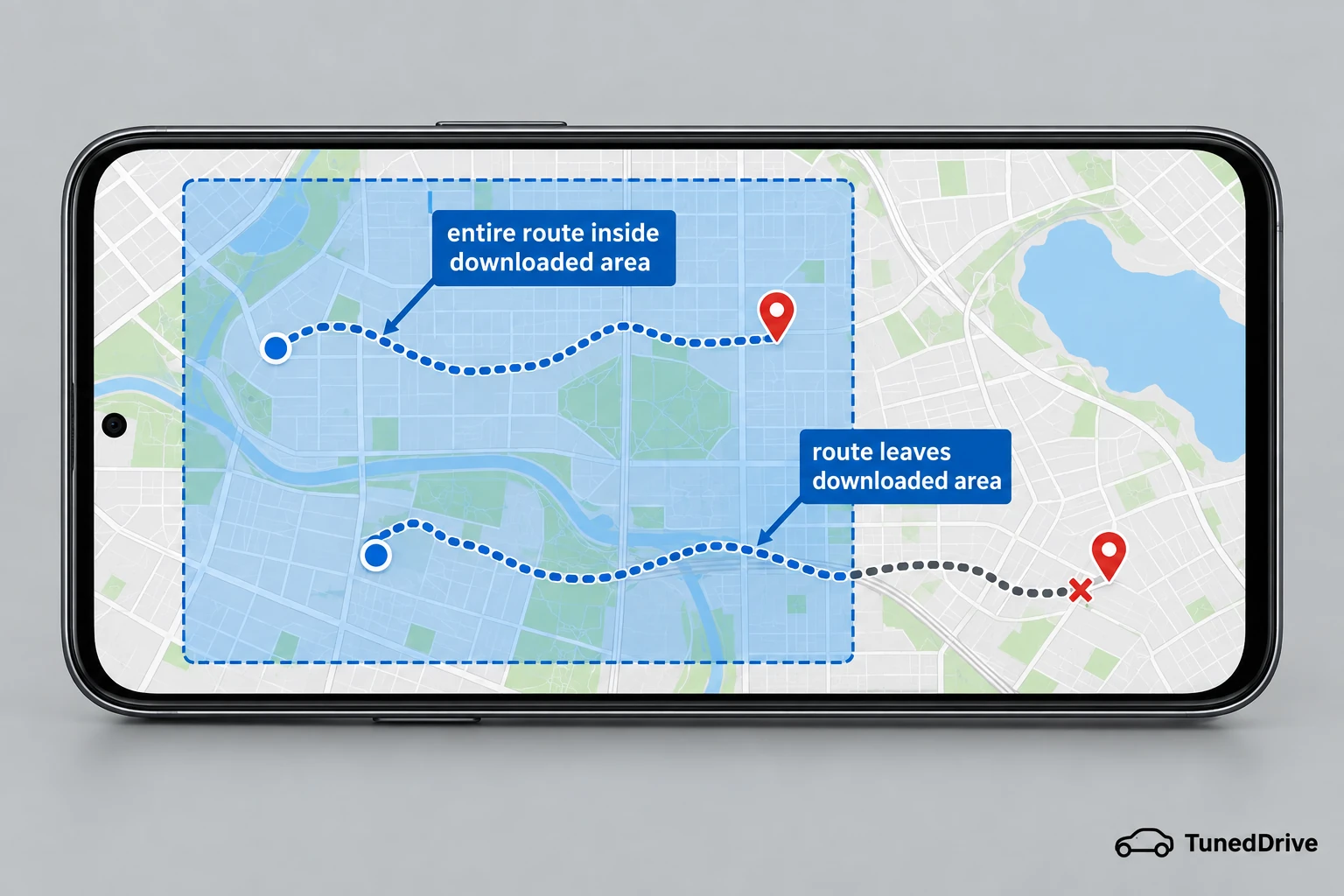
Before a trip through weak coverage, connect the phone to the internet and open Maps > profile picture > Offline maps > Select your own map. Enlarge the area until it contains the entire planned driving route, then tap Download. Confirm the area appears under Offline maps before leaving. While parked, turn off both mobile data and Wi-Fi and start a route wholly inside that area to test whether offline driving guidance loads; restore connectivity afterward. Live traffic and alternate routes still need a connection, including a current reroute around traffic.
Your position is wrong or stops moving
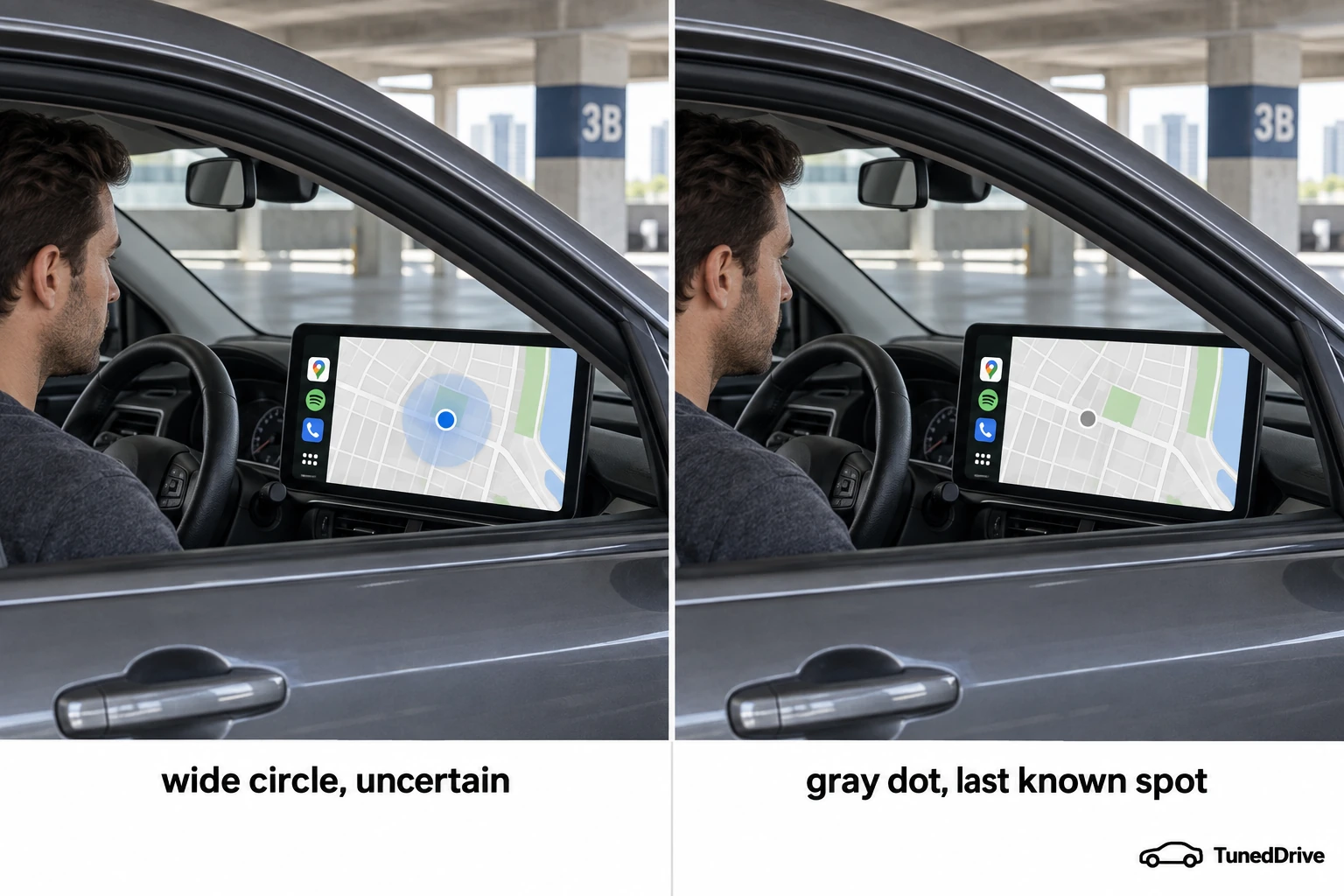
Look at Maps on the disconnected phone first. A wide pale circle around the blue dot means its position is uncertain; a gray or missing dot means Maps has lost your current position. If the phone is wrong too, work through location permission, battery settings, and reception before investigating the car. Missing mobile data explains failed live searches or traffic, while a poor location fix explains a wrong or stuck dot.
- Turn on the phone’s Location setting. Open Settings > Apps > Maps > Permissions > Location and allow access while using the app. Turn on precise location there if offered. Back in Maps, the blue dot should move near your parked position.
- Open Settings > Apps > Maps > Battery and remove a restriction on background use if updates stop when the screen goes off. Turn off Battery Saver for a comparison. Reopen the route and look for a dot that continues updating.
- Park in an open outdoor area, away from a garage, tunnel, or tall buildings. Place the phone where it has a clearer view through the car windows, away from other electronics, and compare Maps on the phone and display again. Better tracking there points to blocked reception or phone placement.
For a moving comparison, have a passenger observe the two screens on a later trip, or review the result after parking; leave the phone alone while driving. If the phone tracks correctly by itself but repeatedly jumps or freezes only in one car, its receiver, connection, or location input becomes a plausible suspect. A second phone running Android Auto doing the same thing in that car strengthens the car-side finding. If your phone fails in another car too, continue with the phone’s location settings.
It fails wirelessly or only in this car
For wireless use, first turn on the phone’s Bluetooth, Wi-Fi, and Location settings and restart the phone and car display. If the car supports wired Android Auto, connect with the short data cable described above and try a route. Working wired projection narrows a wireless-only failure to pairing or the wireless connection.
When wireless alone keeps failing, remove the car from the phone’s saved Bluetooth devices and remove the phone from the car’s paired-device list. Pair them again while parked and start a short route. Wireless Android Auto should open and remain connected. If it drops again, use wired projection for now if that works, and compare another phone running Android Auto in this car or this phone in another car running Android Auto.
For a car-specific fault, look for a receiver software update before replacing hardware. Google’s car and receiver checks (opens in a new tab) include the aftermarket receiver firmware route. A phone that works alone and in another car, together with a second phone that fails here, points toward this car’s software, USB data port, or receiver. If the backup camera also fails on the same display, the backup camera checks can help identify a wider display fault. Before paying for car-side work, look up open recalls by VIN.
Once the fault follows this car after the cable and second-phone comparisons, stop resetting the phone. Contact the vehicle dealer or a qualified automotive electronics shop; for an aftermarket receiver, contact its maker or installing shop. Give them the vehicle and receiver details, phone and Android versions, wired or wireless result, exact error, and whether Maps alone or the entire screen failed. Initial car-side diagnosis is $95 to $150 at an independent shop or $120 to $200 at a dealer, with repair extra. Get the repair scope and any diagnostic-fee credit on the written estimate. Verify factory, extended, or receiver warranty terms before approving work; Federal Trade Commission warranty guidance (opens in a new tab) explains how coverage and service contracts differ.
Preferred source
See more TunedDrive on Google
Select TunedDrive in Google’s source preferences. It takes a few seconds and costs nothing. Our car news, reviews and fixes become more likely to appear in your Top Stories, and AI Overviews can mark them as preferred.
More in this category