What happens when you select Reverse?
- Screen stays on its usual page: see whether radio, menus and touch controls respond, then start with the display, camera setting and reverse signal.
- Screen switches to black, blue or No Signal: inspect the camera and its power and video connections.
- Picture is hazy: clean the outside of the lens first. Picture cuts out: note when it happens.
- Never rely on a blank, blurry, frozen or delayed image to back up.
A working camera needs a reverse command to put live video on the display. Factory systems receive that command through vehicle controls; aftermarket stereos often use a separate trigger lead. We'd first note whether the screen stays on its usual page, opens a blank view, or shows a poor picture, because each calls for a different check. This page covers a camera that was already installed; a screen dead in every mode is a separate display fault.
| What you see | What it points toward | First move |
|---|---|---|
| The radio or map stays on-screen. | The display may not be opening the camera input. | Try the camera setting and screen restart, then observe the reverse lights. |
| The camera page opens, but it's black, blue or says No Signal. | The display switched views but has no usable video. | Look at the camera, visible wiring and connections. |
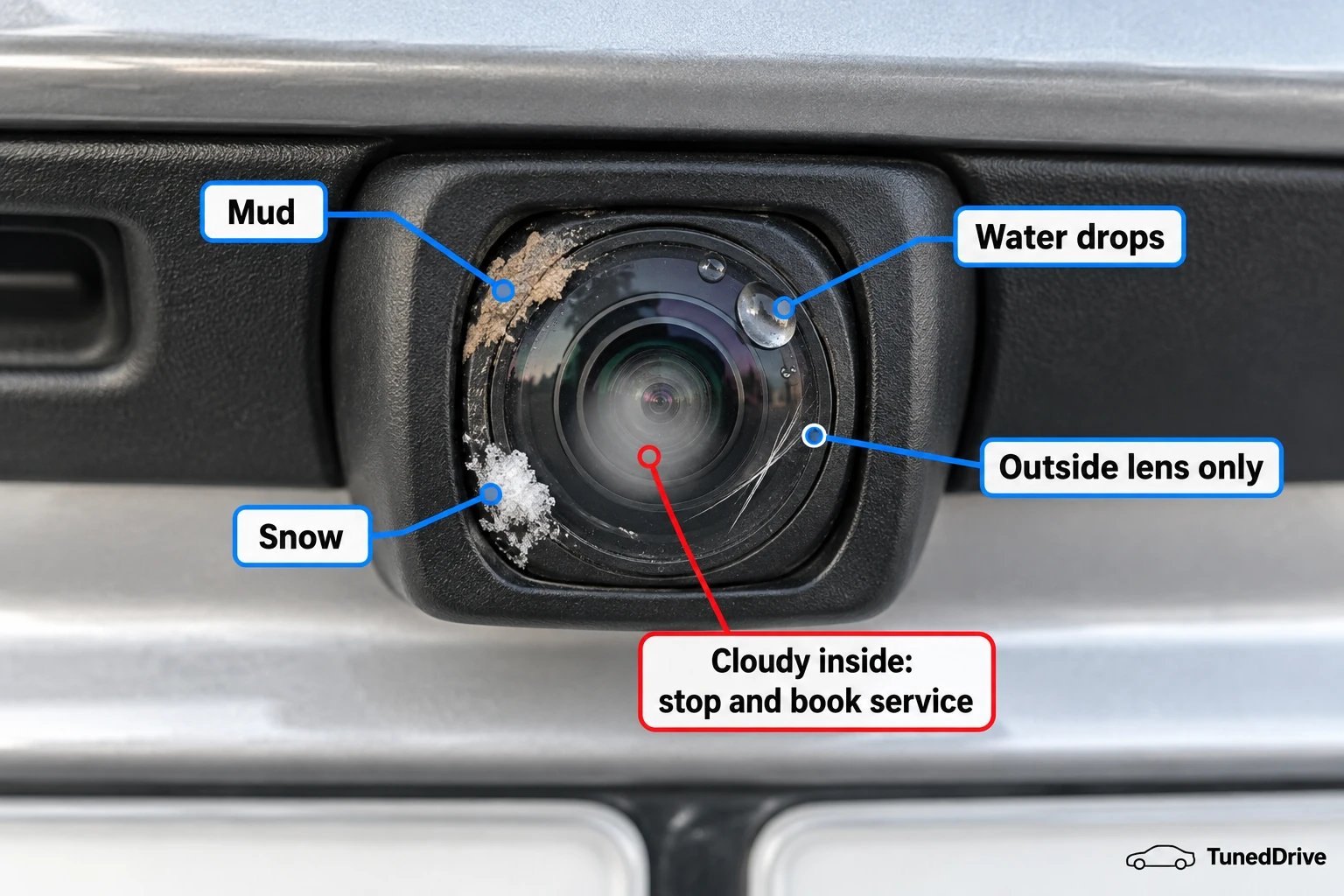
| A live picture is hazy. | Mud, salt or drops may be on the outside of the lens. | Clean the lens with water and a soft cloth. |
| The picture cuts out or stops updating. | The connection, camera or display may be failing intermittently. | Note whether rain, bumps or rear-lid movement coincide with it. |
The screen never switches to the camera
Secure the vehicle and apply the parking brake before selecting Reverse for any stationary screen test.
- In Park, try the radio, menus and touch controls. If they fail too, include the display in diagnosis. If they work, test camera activation next.
- Turn the vehicle off until its electronics shut down, then restart. If seek-forward and volume-down are its reboot controls, hold both for 10 seconds. If it uses the steering-wheel End Call button, hold it for about 20 seconds in Park. Otherwise, use the normal shutoff and restart. Set the parking brake, hold the brake and test Reverse while stationary. Return to Park before getting out. A live view means the immediate fault cleared.
- In Park, open camera settings. Select Rear View on a factory screen with multiple views. On an aftermarket stereo, enable the rear-camera input and automatic Reverse display. A live picture in Reverse confirms activation.
- With the parking brake set and your foot on the brake, select Reverse while a helper observes the lights from the side. Return to Park before anyone approaches the rear. If both lights are dark, move to the fuse check. Working lights leave the camera setting, reverse command and display to examine.
- Turn the vehicle off. Find the camera, radio, display or reversing-lamp fuse in its fuse chart, then open the panel it identifies, commonly under the dash or hood. Pull an owner-serviceable fuse and inspect its wire. Replace a broken one with the same type and amperage, close the cover, and retest the camera and lights. A sound fuse or continuing fault sends you to the camera setting, reverse command and display controls.
- If an aftermarket stereo has a manual Rear Camera command, open that view while parked. A live picture sends you back to its automatic Reverse setting and trigger connection. A blank view sends you to the power and video checks below.
The camera page is blank or the picture cuts out
After one parked restart, note any repeat failure during normal use of Reverse. In Park with the parking brake set and engine off, look for camera damage, moisture behind the lens, and visible wiring damage at the trunk, hatch or tailgate hinge. If the camera looks damaged, knocked out of position or wet inside its housing, stop the inspection and book service. Repeated lid movement can damage wiring there. A pinched wire, loose plug or wet connector points to a repair location; note whether rain, bumps, temperature or lid movement track the fault. Stop at concealed trim, wrapped factory wiring or a wet or damaged harness. Leave a damaged or fogged camera closed.
If yours is a factory system, go to the repair costs and diagnosis section.
- Read the receiver model on its faceplate and the camera model on a visible label. Find their input, video format and supply ratings in the maker instructions, then select the matching input and format in the receiver menu. If no marking or installation record identifies the camera, photograph what you found and end meter checks.
- Set a digital multimeter to DC volts. If the trigger or camera power connection is at the back of the vehicle, clip the meter leads on in Park, step to the side clear of the vehicle's path before your helper selects Reverse, never stand behind the vehicle in Reverse, and have your helper return to Park before you approach the rear again. With the parking brake set and a helper holding the brake in Reverse, measure the labeled positive 12 V aftermarket trigger against ground. Missing voltage points to its supply or connection. Return to Park.
- Measure camera power against ground while its Reverse or accessory feed is active. For Reverse-fed power, keep a helper at the controls with the brake held. Probe only identified aftermarket connections and compare the reading with that camera's rating. A missing reading points to the feed or ground.
- With power off, seat the video plug. For RCA video, test the display input with a known-good source of the same format. Reconnect the camera and confirm live video over several normal Reverse uses. If trigger and camera power are correct but video stays absent, record those results for diagnosis before buying a camera.
The picture is blurry
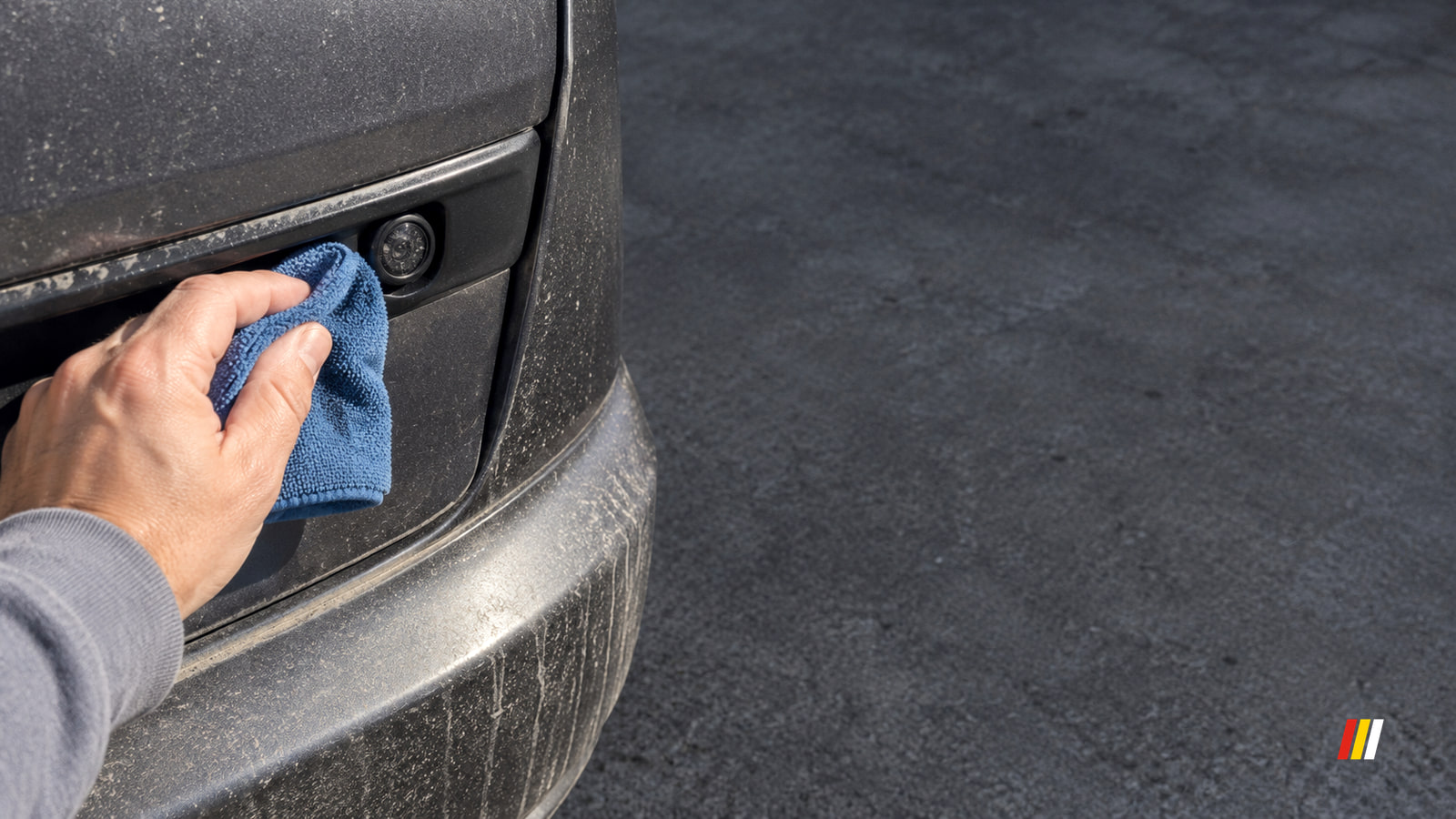
Mud, road salt and water drops on the outside of the lens can blur an otherwise live picture. The camera is usually near the center of the rear of the vehicle, close to the trunk release or license plate area. Stop away from traffic, select Park, set the parking brake and switch off the engine before approaching the lens.
- Rinse exterior grit with cool or lukewarm water, then gently wipe the lens with a clean, damp microfiber cloth. The expected result is a clear view on the next normal use of Reverse.
- If your vehicle has a camera washer, try its marked camera control or rear-window washer. Look for fluid reaching the lens, then see whether the view clears.
- After the outside dries, look for fog behind the lens, scratches, a cracked cover or yellowed plastic. Compare the camera view with other screen pages. A blurred menu points toward the display; a sharp menu beside a persistently blurred rear view points back toward the camera or its cover. Compare the cleaned image on a later clear daylight drive with the conditions that made it look poor. A clear daylight picture directs you toward lighting or weather; blur that remains in daylight directs you toward the camera or display.
What repair and diagnosis will cost
For a compatible older standard-view crossover, a typical factory-camera replacement lands near $570: about $370 for the part, 0.45 billed hours at about $140 an hour, plus diagnosis. An independent shop bills $120 to $159 an hour; the factory-camera replacement allowance is 0.4 to 0.5 hours. The aftermarket direct-fit row uses a $110 to $170 camera and 1 to 2 hours of installation. The older crossover row uses a $360 to $380 factory camera; the pickup example uses a $77 to $130 factory camera. Wiring, display replacement, and required programming or calibration are separate charges.
| Job | Price | What the job provides |
|---|---|---|
| Independent-shop diagnosis, passenger car or light truck | $120 to $150 | Locate the fault before buying parts. |
| Aftermarket direct-fit camera with diagnosis, select pickups or crossovers | $350 to $640 | Diagnose and fit the camera; confirm live video. |
| Factory standard-view camera with diagnosis, older crossover | $530 to $610 | Diagnose and fit the camera; confirm live video. |
Before approving paid work, enter your 17-character VIN in NHTSA's open-recall lookup (opens in a new tab). A safety recall brings a free repair when the vehicle was no more than 15 years old on the date the defect was determined. The VIN recall walkthrough explains what to do after a zero result. Then ask the maker or dealer to check that VIN for warranty or service-program coverage. A factory camera fault is not automatically covered: the Federal Trade Commission's auto-warranty explanation (opens in a new tab) describes coverage as a promise limited by its terms and timeframe.
The owner checks end if a same-type, same-amperage replacement fuse blows again, wiring is damaged or wet, the lens is fogged inside, the picture remains absent, or other screen functions fail. For a factory system, book a dealer for VIN coverage or an independent shop that diagnoses vehicle electrical faults. For an aftermarket system, use the installer or a car audio shop. Tell them whether the screen never switches or opens a blank view, whether the reverse lights work, and whether rain or rear-lid movement affects it. For an aftermarket system, have the installer test the reverse trigger, camera power and ground, and video path before replacing the camera. Request a written diagnosis before authorizing replacement.
Questions that come up after the first checks
Why does my backup camera picture freeze or lag?
While parked, compare the screen with the actual scene behind you. If the scene changes but the picture doesn't, restart the screen once and treat any repeat as an unreliable image. A view that merely remains on-screen briefly after leaving Reverse is a display-delay setting, not a frozen scene.
Why did the guide lines disappear when the picture still works?
Guide lines are a display feature separate from the video. Look for the guideline setting, then return from a zoomed or alternate view; a trailer connection or work on the camera or screen can also affect the lines. Fixed lines and lines that move with the steering are different features. Missing parking beeps alone point to the separate parking-aid system.
Is it safe to drive with a broken backup camera?
The vehicle may still drive normally, but don't use a blank, blurry, frozen or delayed image to reverse. Stop, look behind the vehicle directly, use the windows and mirrors, and move slowly only after confirming the path is clear. Keep it parked if you cannot confirm that path, and arrange prompt repair for an open camera safety recall. Stop using the vehicle if another electrical fault affects its operation.
How can I keep my backup camera working after it is fixed?
Gently remove salt and mud from the lens with water and a soft cloth. Keep pressure-washer spray off the camera and seals, and make sure rear-lid wiring and trim aren't pinched after repairs. Recurring fog or flicker deserves attention before the picture disappears; cleaning cannot prevent an internal electrical fault.
Preferred source
See more TunedDrive on Google
Select TunedDrive in Google’s source preferences. It takes a few seconds and costs nothing. Our car news, reviews and fixes become more likely to appear in your Top Stories, and AI Overviews can mark them as preferred.
More in this category
Continue at the desk
VIOFO A329S Review, What You Trade to Watch the Cabin
Thinkware U3000 PRO Review, What Radar Parking Mode Costs Your Battery
Why Does My Car Alarm Keep Going Off?
- Vueroid S1 4K Infinite Review, Footage You Can Hand Over After a Crash
- 6 Dash Cams That Keep Recording While Your Car Is Parked
- Why Is Google Maps Not Working on Android Auto?
- Why Is My Car Remote Start Not Working?
- Why Is My Check Engine Light On but the Car Runs Fine?
- How to Tell the Age of a Tire
- Why Does My Car Battery Keep Dying?